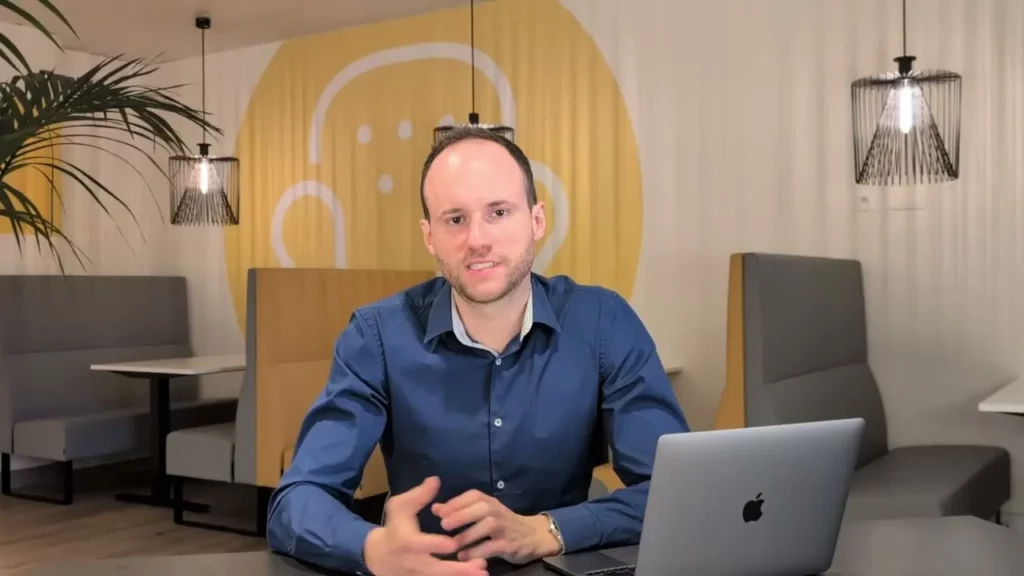
Adding a chatbot to WordPress: the easy way with Vitamin AI
Reworking software means taking over existing code to correct it and make it evolve.
We start by accessing the code, then carry out a free maintainability analysis.
Depending on the quality of the code, improvements are made using the same technology or part of the code (often the back-end) is overhauled.
Changing service providers allows you to unlock fixes when the current team is no longer available.
Updating a language or migrating a technology improves performance and security.
Adding a chatbot to WordPress can be done in just a few minutes if you use a tool that generates integration code ready to copy and paste. In this video, the example is given using Vitamin AI, but the principle can work with any type of website or application.
The aim: to display a chatbot (at the bottom right of your site), test it, improve it, and eventually recover leads (name, email, telephone number).
What you'll get (and prerequisites)
At the end :
your chatbot is visible on your site,
you can test it as a user,
and can respond from a knowledge base (docs, website pages, etc.).
Simple prerequisites :
access to the administration of your site (e.g. WordPress),
and an account on Vitamine AI.
Creating a chatbot in Vitamine AI
First step: use a tool like Vitamin AI.
You are register on the platform.
Once you have logged in, go to the application dedicated to chatbots.
You add a new chatbot.
Next, you can define :
a name for your bot,
the ways in which you want it to answer to users,
and the knowledge base on which it is based.
An “AI-based” chatbot is often fed by content (pages, documents) rather than by a fixed question/answer tree. The challenge therefore becomes the quality and clarity of the information provided.
Define the knowledge base (documentation, website link)
The transcript stresses a key point: with Vitamine AI, you don't need to create decision trees. Above all, you supply the data necessary to respond, for example :
your technical documentation,
a link to your website (if the information is already there),
and other useful content.
The more structured your content (clear pages, FAQs, up-to-date docs), the more likely the chatbot is to respond consistently.
Customise the chatbot: name, colour, icon
You can set a number of presentation elements in the tool:
the name chatbot,
the colour,
l’icon displayed (to “formalise” the chatbot visually).
These settings help to integrate it neatly into your brand identity, without complicating the installation.
Test and improve responses using simulation
Vitamine AI offers a simulation You interact with the chatbot as if you were a user, and observe how it responds to your questions.
The interest, as described :
you test “under conditions”,
then you improve behaviour of the bot based on the responses observed during the test phase.
Activate lead recovery (optional)
An option presented in the video : recover leads. The idea :
if someone is interested in a service,
you get him to leave name, email and telephone number,
You install a free extension which enables’add code on your site. (The video does not mention the name of the extension).
You activate extension.
You open the add code interface, then do a simple copy and paste of the Vitamin AI code.
You save and check that the code is assets.
Check display, language and correct operation
Last step: return to your site to confirm that the chatbot is available. In the example, it appears bottom right of the screen.
Two important behaviours were mentioned:
the chatbot recognises default browser language of the user,
but it can also trade in another language if the user so wishes.
The video concludes: in just a few minutes, you can add a chatbot and provide support “.“24/24”It's as if they were asking their questions to your sales or customer service department.
To remember
Case study: adding a chatbot to WordPress (a principle that applies elsewhere).
With Vitamin AI, You create a chatbot and define its behaviour.
You feed it via a knowledge base (documents, website links, etc.).
You personalise name / colour / icon.
You test via a simulation, and then improve the answers.
Option: activate the lead generation (name, email, telephone).
You get a short code and integrate it into WordPress via a free extension code injection.
The chatbot appears in the bottom right-hand corner and manages the browser language.
Conclusion + Next step
If you want to integrate a chatbot into your site (WordPress or other) or frame the AI/automation part around support and leads, you can :
Describe your vision to us using this form: we'll analyse your request and get back to you within 24 hours with personalised advice and a concrete action plan.
We have the team and the resources to help you with your projects. Give us the details in this form and we'll get back to you as soon as possible to discuss them together.
Answer visitors' questions directly on the site, like an online support service. In the video, the aim is to make it quick to install and immediately testable. Discover how to install and use a chatbot on a website.
Create the bot in Vitamine AI, choose its knowledge base, then retrieve the integration code. Then install a free WordPress extension to add the code, activate it and copy and paste it. If you don't have a WordPress site yet, you can create a bespoke WordPress site with an integrated chatbot at iterates.
Check that they know how to frame the knowledge base (docs, pages, information) and set up a test/improvement phase before going online. A service provider must also be able to integrate the chatbot neatly into your CMS. Contact our AI chatbot installation team on wordpress site
Yes: the video shows a set-up that takes just a few minutes, with a short code to integrate, and an option to collect leads (name, email, telephone). To discuss your case, contact meet an AI chatbot expert.
First, review the knowledge base provided (documentation, site pages) and test in simulation to observe the responses. Then adjust the bot's behaviour according to the test results, as shown in the video. If you want to contact an expert for a wordpress site audit for chatbot integration fast.